
Which two of the following export formats are supported in Hybrid Cloud Observability (HCO) reports? (Choose two.)
excel
JSON
txt
SolarWinds Hybrid Cloud Observability provides robust reporting capabilities designed for both technical analysis and executive presentation. TheSolarWinds Platform Reporting Guidespecifies that reports generated through the Web Console can be delivered or manually exported in several standardized formats.
Excel (.xls/.xlsx): This format is primarily used for data-heavy reports where administrators need to perform further calculations, sorting, or external data manipulation. It allows the raw table data from the report to be easily ingested into other business intelligence tools.
PDF: This is the standard format for automated delivery and "executive-ready" documentation. It preserves the visual layout, including charts, logos, and specific formatting defined in the report builder.
While the platform usesJSON(Option B) for internal API communications and some dashboard configurations, andtxt(Option D) might be used for certain log exports, they are not standard selectable "export formats" within the primary Web-Based Report builder for end-user consumption. The primary focus of the reporting engine is providing human-readable (PDF) and spreadsheet-compatible (Excel) outputs.
What is the result of a monitored node being deleted?
neither the node nor the associated objects will be removed
node and associated objects will be immediately removed
node and associated objects will be removed during next database maintenance cycle
node will be removed and associated objects will remain unless explicitly deleted
In the SolarWinds Platform, the "Node" acts as the primary parent object for all other monitored elements related to that IP address or hostname. According to theSolarWinds Platform Node Managementguide, the deletion process follows a strict parent-child relationship hierarchy.
When an administrator selects a node and chooses to delete it, thenode and all its associated objects are immediately removed (B)from the active monitoring database. Associated objects include interfaces, volumes, hardware health sensors, and application monitors (such as those assigned via SAM). This is an irreversible action. Unlike "Unmanaging" or "Muting," which keep the node record intact, "Delete" purges the entity and its historical data pointers from the current view.
It is important to understand that while the records are removed from the web console immediately, the actual data rows in the SQL database may be marked for deletion and cleared during the next scheduled "Database Maintenance" (Option C). However, from the perspective of the user and the monitoring engine, theresultis immediate: the node stops being polled, its alerts are cancelled, and it no longer appears in any dashboards or reports. The platform does not allow "orphaned" objects; you cannot have a monitored interface in the database if its parent node has been deleted (Option D).
A non-administrator user reports they are unable to create Intelligent Maps in the web console. What is the reason for the block?
user has not been given the creator role in maps
user has not been given default set of user permissions
user has not been given the manage views permission
user has not been given permission to add images
The ability to create and manageIntelligent Mapsin the SolarWinds Platform is tied to a specific set of granular user permissions. While a user may have general rights to view the console, creating a map involves placing entities onto a canvas and, frequently, utilizing background images or custom icons. According to theSolarWinds Platform documentation on Map Management, a critical prerequisite for full map creation functionality is thepermission to add images (D).
In the user account settings underSettings > All Settings > Manage Accounts, there is a specific toggle for "Allow Map Management" or "Allow Editing." However, if the underlying platform permission for "Add Images" is not enabled, the user will find the map creation wizard restricted or non-functional. This is because Intelligent Maps rely on the platform's shared image library to store the metadata and visual components of the map. Without the right to write to this library (Add Images), the user is blocked from saving new map definitions to the database. This permission is often disabled by default for standard users to prevent the web server's storage from being filled with unauthorized or non-work-related image files.
Which two of the following group settings can be added as member settings? (Choose two.)
alerts
groups
intelligent maps
user accounts
In the SolarWinds Platform, groups are more than just static lists; they are logical containers that allow for the inheritance and management of settings across multiple entities. According to theSolarWinds Platform Administrator Guide, when configuring a group, you can define specific "Member Settings" that apply to the objects contained within that group.
The two primary settings that can be integrated as member settings within the group configuration arealerts (A)anduser accounts (D).
Alerts: This allows administrators to associate specific alerting logic directly with group membership. For example, you can configure group-specific alert thresholds or suppressions that apply only to the members of that group, ensuring that critical infrastructure groups have more sensitive alerting profiles than development or test groups.
User Accounts: This refers to the ability to link specific user or group account permissions to the group itself. This is often used in multi-tenant or departmentalized environments where a user account is granted a "Group Limitation." By adding user account settings as a member setting, you can define which users have the rights to view, manage, or edit the specific entities within that group.
While you can nest "groups" (Option B) within each other, they are considered members themselves rather than a "member setting". Similarly, "Intelligent Maps" (Option C) are visualization objects that cancontaingroups, but they are not a configurable setting appliedtothe members of a group within the standard group management wizard.
Which two of the following conclusions can be made from the shown AppStack view? (Choose two.)
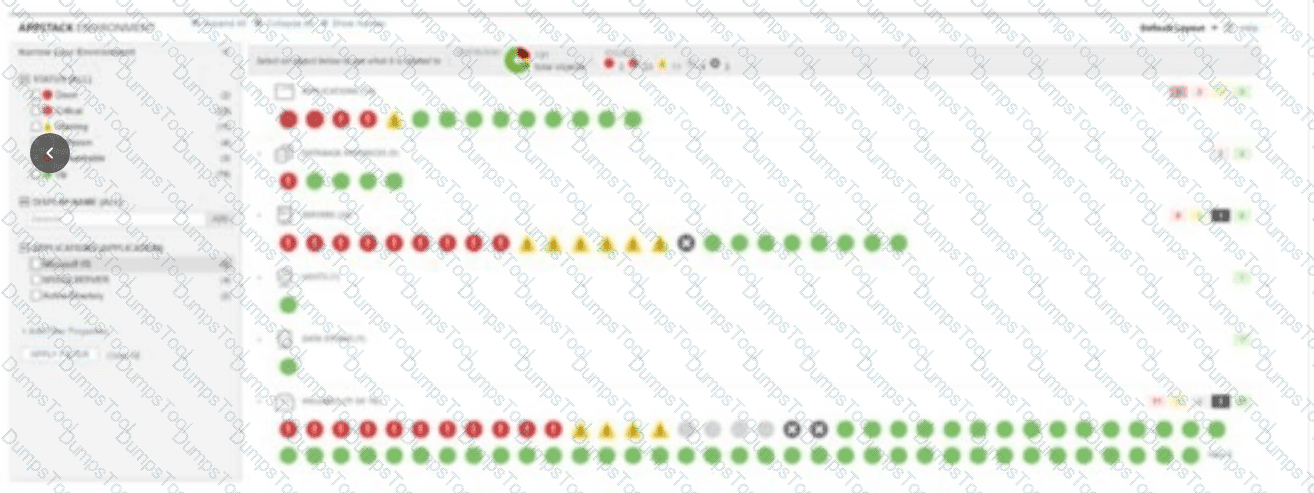
A filter is applied to show entities related to an application.
The option to hide categories with no objects is selected.
The storage resource monitor (SRM) is not installed.
The user's account is given administrator access rights.
According to the SolarWinds Platform Administrator Guide for Hybrid Cloud Observability, theAppStack Environment Viewprovides an interactive, visual mapping of relationships between monitored entities such as applications, servers, and storage. In the provided image, it is evident thata filter is applied to show entities related to an application (A)because the left-hand navigation pane shows specific filters selected under the "Applications" category, and the main view displays a subset of the environment's total objects that correspond specifically to those application relationships. This filtering capability allows users to narrow down the environment to focus on the specific dependencies of a critical business service, such as Microsoft Active Directory or a SQL Server instance, which are shown as filtered groups in the sidebar.
Furthermore, it can be concluded thatthe option to hide categories with no objects is selected (B). A standard, unfiltered AppStack view typically displays every possible layer of the IT stack—including Transactions, LUNs, Pools, and Arrays—regardless of whether they contain active entities. However, in the provided view, only categories containing entities relevant to the current filter (such as Applications, Database Instances, Servers, and Volumes) are visible. This indicates that the "Hide categories with no objects" setting is active, which is a standard customization used to clean up the interface and highlight only the active parts of the dependency map.
While the view shows storage-related entities like "Volumes," this does not confirm whether theStorage Resource Monitor (SRM) is not installed (C), as basic volume data can often be collected via standard node polling. Additionally, the AppStack interface itself does not provide enough diagnostic data to verify if theuser account is given administrator access rights (D), as these visual elements are accessible to non-admin users with appropriate view permissions. Therefore, A and B are the only verified conclusions based on the visual evidence of the filtered environment.
Which three of the following actions can be taken within a PerfStack project? (Choose three.)
add as a menu bar item
share to non-web console users
show as a dashboard graphic
show as a widget in a view
PerfStack(Performance Analysis) projects are highly versatile troubleshooting assets that can be shared and integrated across the SolarWinds Platform. According to theSolarWinds Platform Administrator Guide, once a correlation project is built—linking metrics like CPU, Latency, and IOPS—it can be utilized in several ways.
Add as a menu bar item (A): A specific PerfStack project that is used frequently (such as "Core Switch Health") can be saved and added directly to the main navigation menu. This allows users to access the troubleshooting dashboard with a single click from anywhere in the console.
Share to non-web console users (B): PerfStack projects can be shared via a unique URL. This "Public Link" feature allows stakeholders who do not have a SolarWinds account (such as third-party vendors or executives) to view the real-time correlation data in a read-only browser view.
Show as a widget in a view (D): PerfStack projects can be embedded into Summary Views or Node Details pages as awidget. This provides context-sensitive performance data right alongside the standard node information, allowing for "at-a-glance" correlation without leaving the main dashboard.
While PerfStack provides visual data, it is typically treated as a dynamic, interactive "Project" or "Widget" rather than a static "dashboard graphic" (Option C) in the classic sense of a standalone image or icon.
What are custom properties and how are they used?
built-in attributes used for dynamic device grouping
static fields used to identify nodes in SQL database
static, pre-defined fields automatically applied to all monitored nodes
user-defined fields to store additional node or element information
Custom Propertiesare one of the most versatile features of the SolarWinds Platform, providing a way to extend the metadata associated with monitored objects. TheSolarWinds Platform Administrator Guidedefines them as "user-defined fieldsthat allow you to add custom information to nodes, interfaces, volumes, or other monitored entities".
Unlike built-in attributes like "IP Address" or "Vendor," which are discovered automatically, custom properties are created by the administrator to suit specific business needs. Common examples include "Site Location," "Emergency Contact," "Department," or "Service Level Agreement (SLA) Tier". These fields are critical for organization and automation because they allow for:
Filtering and Grouping: You can create groups that automatically include any node where the "Department" custom property is set to "Finance".
Alerting: You can configure alerts to only trigger for nodes marked as "Mission Critical" in a custom property field.
Reporting: Reports can be generated to show the uptime of all nodes belonging to a specific "Owner" or "Cost Center".
Because they are user-defined, they provide the necessary flexibility to map technical monitoring data to real-world business structures.
Which two of the following configurations are available as content for web-based reports? (Choose two.)
existing intelligent maps
existing diagrams
existing PerfStack projects
existing widgets
The modern web-based report builder in SolarWinds is highly integrated with the rest of the platform's visualization tools. According to theSolarWinds Platform Reporting Guide, reports are no longer limited to simple data tables; they can incorporate rich, interactive content already created elsewhere in the console.
Two key configurations available as content areexisting intelligent maps (A)andexisting widgets (D).
Existing Intelligent Maps: This allows an administrator to take a visually mapped dependency or network topology and embed it directly into a scheduled report. This provides a geographical or logical context to the data that static tables cannot provide.
Existing Widgets: Most widgets (resources) found on Summary or Node Details pages—such as "Top 10 Nodes by Response Time" or "Active Alerts"—can be added to a report as a component. This ensures consistency between what users see in real-time on their dashboards and what they receive in their weekly PDF summaries.
While you can embed performance data, the report builder is designed to consume these pre-configured UI elements (Maps and Widgets) to simplify report creation and maintain a unified look and feel across the observability suite.
How are devices within a network that does not respond to SNMP or WMI, discovered and imported for monitoring?
Increase the network discovery time out value.
Include devices that only respond to ICMP in network discovery.
Select agent polling method in network discovery.
Set a network hop value greater than 0 in the discovery settings.
Network Discovery in the SolarWinds Platform is designed to identify as much infrastructure as possible, even if that infrastructure is "locked down." According to theSolarWinds Platform Administrator Guide, the discovery wizard follows a specific hierarchy of identification.
If a device hasSNMPorWMIdisabled (often the case for security-hardened servers, basic switches, or simple IP-enabled appliances), the platform cannot gather deep performance metrics like CPU or memory. However, the device can still be discovered and monitored for "Up/Down" availability using a simple Ping (ICMP). To ensure these devices are added to the database during a scan, the administrator must check the box to "Include devices that only respond to ICMP" during the discovery configuration. If this is not selected, the discovery engine will skip any IP address that does not provide a valid SNMP or WMI credential response, potentially leaving gaps in the network inventory. This is the standard method for monitoring "Ping-only" nodes.
Which two of the following metrics are supported within Hybrid Cloud Observability (HCO) anomaly-based alerting? (Choose two.)
average CPU load
disk space usage
interface utilization
percent packet loss
Anomaly-Based Alertingin HCO is currently focused on high-cardinality performance metrics that exhibit clear cyclical patterns (daily or weekly cycles). According to theSolarWinds Platform Alerting Guide, the machine learning engine is optimized for metrics where "normal" behavior varies significantly based on time of day.
The two primary supported metrics for this feature are:
Average CPU Load (A): CPU utilization is highly variable; a server might be idle at night but busy during business hours. Anomaly detection learns these patterns to prevent false positives during scheduled peak times.
Percent Packet Loss (D): Network stability is a critical indicator of environmental health. By establishing a baseline for packet loss, the system can distinguish between a minor, expected "blip" in a high-traffic environment and a true anomaly that indicates a failing circuit or network congestion.
While metrics like "Disk Space Usage" (Option B) are critical, they are generally "linear" or "incremental" rather than cyclical; a disk filling up is a trend that is usually better handled by standard predictive or static threshold alerts. Similarly, while interface utilization is important, the initial release of anomaly-based features prioritizedNode-levelperformance metrics like CPU and Packet Loss to provide the most immediate value for identifying server and core network health deviations.
Which out-of-the-box property is associated with a web-based report?
category
creator
format
owner
In Hybrid Cloud Observability (HCO), reports are organized using specific metadata to make them searchable and manageable. According to theSolarWinds Platform Administrator Guide, every report created or provided out-of-the-box is associated with acategory.
Categories serve as the primary organizational structure in the Report Manager. Examples of standard categories include "Inventory," "Performance," "Historical," or "User Accounts". When creating a new report, the user is prompted to assign it to one of these categories or create a new one, which then dictates where the report appears in the navigation tree.
While the system may track who created a report, fields like "Owner" (Option D) or "Creator" (Option B) are not standard, visible metadata properties used for the primary sorting and management of web-based reports in the same way thecategoryis. "Format" (Option C) refers to the export type (PDF/Excel) and is a function of how the report is run or scheduled, rather than an inherent property of the report definition itself.
Which benefit does Anomaly-Based Alerting add to the Hybrid Cloud Observability (HCO) alerting engine?
analyzes entity behavior and uses data to fire an alert if trigger conditions are outside established behavior
removes the requirement for any trigger condition thresholds on an alert
removes the requirement for the user to configure set of trigger conditions
resets alerts that met established trigger conditions and fired outside the scope of those established behaviors
Anomaly-Based Alertingrepresents a shift from static thresholds to behavioral analysis in the HCO platform. According to theSolarWinds HCO Alerting Enginedocumentation, this feature uses machine learning to establish a "baseline" for specific metrics like CPU load or memory usage over a period of 7 to 30 days.
The primary benefit is that itanalyzes entity behaviorand triggers an alert only when a metric deviates significantly from its historical "normal" for that specific day and time. For example, if a server traditionally runs at 90% CPU during a Sunday night backup, a static 80% threshold alert would trigger a "false positive" every week. Anomaly-based alerting learns this behavior and will only fire an alert if the CPU hits 90% on a Tuesday morning when the normal load is only 20%.
This reduces alert noise by focusing ontrue anomaliesrather than simple threshold violations. It does not "remove the requirement for trigger conditions" (Options B and C); instead, it replaces a static numerical threshold with a dynamic, machine-learned threshold. The administrator still defineswhichentities to monitor andhowsensitive the anomaly detection should be.
Several active directory groups have access to SolarWinds Hybrid Cloud Observability (HCO). There are three additional groups to be added, however they are not showing up on a search. Why can the additional groups not be added?
missing groups are distribution groups
missing groups exceed the maximum number of groups
missing groups have too many users
missing groups have users already present in added groups
When integrating Active Directory (AD) with the SolarWinds Platform, the system is designed to leverage AD groups for role-based access control (RBAC). According to theSolarWinds Platform Administrator Guide, the platform specifically requiresSecurity Groupsfor authentication and permission mapping.
Active Directory contains two primary group types:Security GroupsandDistribution Groups. Distribution groups are intended purely for email lists and do not have a Security Identifier (SID) that can be used for assigning file system or application permissions. Because SolarWinds relies on the SID to grant web console access and define user rights,distribution groupswill not appear in the search results when attempting to add new Windows groups to the platform. To resolve this, the AD administrator must either convert the existing distribution groups to security groups or create new security groups containing the desired users. Once the group type is set correctly to "Security," the SolarWinds search utility will be able to resolve the group name and SID, allowing it to be imported and assigned permissions within the console.
Alerts A and B were assigned the same trigger action through the action manager. What describes what happens when the action is modified while editing alert A's configuration?
alert B is automatically updated
alert B is unaffected by modification
modification is unable to be saved
trigger action is updated in manager
The SolarWinds Platform utilizes a centralizedAction Managerto handle alert notifications and remediations efficiently. According to theSolarWinds Platform Alerting Guide, alert actions (such as sending an email, executing a script, or posting to a Slack channel) are often treated as reusable objects. When multiple alerts (Alert A and Alert B) share the same action from the Action Manager, they are essentially pointing to a single configuration entry in the database.
If an administrator edits Alert A and modifies the parameters of that shared trigger action, the change is not isolated to just that alert's workflow. Instead, thetrigger action is updated in the manager. Because Alert B is linked to that same action ID, it will immediately reflect the updated configuration the next time it triggers. This behavior is designed to simplify administration; for example, if a primary on-call email address changes, an admin only needs to update the action once rather than editing every individual alert. However, it requires caution: if a user intended to change the action for Alert A only, they should instead "Copy" the action or create a new one to avoid inadvertently altering the behavior of Alert B and all other alerts sharing that centralized action.
How is an existing agent's communication mode changed?
configure global agent settings
edit in manage agents page
modify communication mode in Orion agent settings
redeploy agent with desired communication mode
Once a SolarWinds agent is deployed, its communication mode (Active/Passive or Agent-Initiated/Server-Initiated) may need to be adjusted due to network changes or security requirements. According to theSolarWinds Platform Agent Managementguide, this is handled through a centralized administrative interface.
The correct method is toedit the agent in the "Manage Agents" page. By navigating toSettings > All Settings > Manage Agents, an administrator can select one or more agents and click "Edit Settings." Within this menu, the "Communication Mode" can be toggled. If the change is possible (i.e., the network allows the new path), the platform sends a command to the agent software on the remote node to switch its listening or polling behavior.
This process is designed to be seamless and does not require a fullredeploy(Option D) of the software, which would be time-consuming and disruptive. Modifying "Global Agent Settings" (Option A) would affect allnewagents but doesn't specifically target an existing agent's unique configuration. The "Manage Agents" page provides the granular control necessary to modify these communication parameters on a per-node or bulk basis.
Which two of the following report functions require report management permissions? (Choose two.)
change report timing
export the report
modify report schedule
run an existing report
SolarWinds distinguishes between "viewing" reports and "managing" them through account permissions. According to theSolarWinds Platform User Account Managementguides, standard users can typically view, run, and export reports that they have access to.
However, administrative actions that affect the system's resource usage or global configurations require theManage Reportspermission:
Modify report schedule (C): Only users with management rights can create, edit, or delete the schedules that automatically email reports to recipients. This is a security measure to prevent unauthorized users from flooding mail servers or accessing sensitive data via automated delivery.
Change report timing (A): This refers to editing the "Time Period" or "Schedule" settings within a report's core definition. Altering these parameters changes the report for all users, so it is restricted to those with "Manage" rights.
Exporting a report(Option B) andrunning an existing report(Option D) are fundamental "read-only" actions available to any user who has been granted report viewing rights.
What indicates an alert cluster has been eliminated (i.e., end conditions have been met)?

auto-closed
closed
completed
resolved
In Hybrid Cloud Observability (HCO), specifically within theAlertStackfeature, related alerts are grouped into clusters to reduce "alert fatigue" and provide a unified view of an incident. According to theSolarWinds HCO Alerting Guide, an alert cluster transitions through several states based on the status of the underlying trigger conditions.
When the primary issues that triggered the alerts within the cluster are addressed and the "Reset Conditions" for those alerts are satisfied, the cluster is automatically managed by the system. The term used to define a cluster that has met its end conditions isauto-closed. Unlike manual "acknowledgment" or "resolution," which are user-driven actions, "auto-closed" signifies that the platform's monitoring engine has verified the environment has returned to a healthy state and the cluster no longer requires active monitoring or intervention. This automated lifecycle management is central to the AIOps and machine-learning capabilities of the platform, ensuring that the dashboard only reflects currently active, actionable incidents rather than historical events that have already been naturally corrected.
TESTED 31 Jan 2026
Copyright © 2014-2026 DumpsTool. All Rights Reserved